Reports can generate themselves. In Ultimate Forms, a timer action of the type Print list items takes a print template, renders the list's data into a branded PDF, Word, or Excel document, and emails it to its recipients, every Monday at 8, every morning at 6, whenever the schedule says. The combination of two components, Actions for the timing and Print for the output, replaces the weekly ritual of filtering a view, exporting it, fixing the formatting, and attaching it to an email. This guide builds the classic example end to end, a weekly attendance report that arrives on its own, and covers the scenarios and habits around it. For the scheduling mechanics in depth, see the scheduled actions guide; for everything actions can do, the automation hub.
The report ritual, and what it costs
Every organization runs on recurring documents: the Monday status sheet, the daily overdue list, the month-end register, the compliance snapshot. And in most SharePoint shops, each one is a ritual performed by a person: open the view, check the filter, export to Excel, repair the columns, print to PDF, write the email, attach, send. Fifteen minutes when nothing goes wrong, every week, forever, and the quality depends on whoever performs it remembering, filtering correctly, and using this month's template rather than last year's.
The ritual persists because native SharePoint gives it no alternative: list printing out of the box means awkward layouts and copy-paste into Office. The two pieces that dissolve it are a print engine worth scheduling and a scheduler worth trusting, and Ultimate Forms ships both in the same product, designed to compose.
The print engine
The Print component turns list data into finished documents rather than screen dumps. Templates come in two shapes, Item View for single records and List View for tabular reports, and both are genuinely designed documents: headers and footers, section breaks, themes and branding, margins, even barcodes and QR codes, with the option to supply a Word document as the template so the layout matches your house paper exactly. Output renders to PDF, Word, or Excel, and delivery is built in, download, bulk export, or email with the document attached.
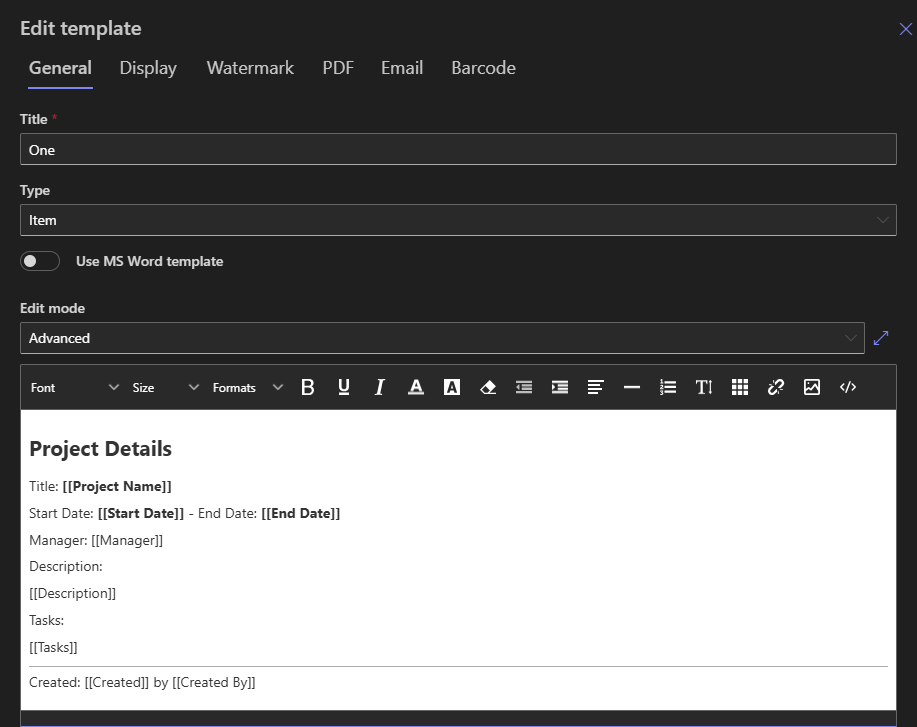
Used manually, this already replaces the export-and-repair ritual's middle steps: a Print button on the form or in the view produces the finished document on demand. The full template craft, layouts, Word tables, filters inside templates, belongs to the printing guide and its cluster; this article takes the engine as given and automates it.
The scheduler
Timer triggers run actions hourly, daily, weekly, or monthly at a chosen time, or keyed to date columns, two days before each Due Date, say. The one concept scheduled actions add, how an action with no triggering event chooses its items, is its own article's subject, and the short version suffices here: static conditions make the action sweep every matching item individually, while no conditions means one run, with the Items settings deciding what the output covers. Report generation is almost always the second shape, one run, one document, covering whatever the template's view and filters collect.
The build: a weekly report that sends itself
The scenario: every Monday at 8:00, HR receives a PDF summary of last week's attendance records, branded, consistent, and nobody's Monday chore.
Step 1: the template. In the list, open Design and switch to the Print component. Create a List View template over the attendance view, and design the layout: the columns that matter, the company header, the report title, the date in the footer. Design time is spent once; every subsequent report inherits it.
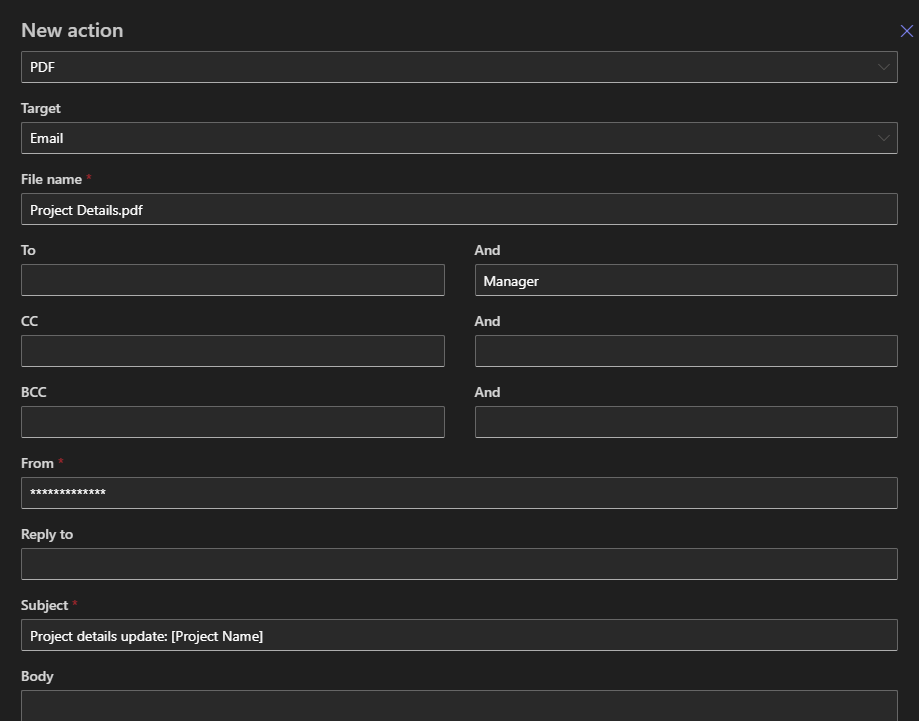
Step 2: the action. Switch to Actions and create a new action of the type Print list items. Select the template from step 1, set the output format to PDF, and configure the email delivery: the HR team as recipients, a subject that names the report and its period, a line of body text. Column values and functions work here as in any action, so the subject can carry the date range it covers.
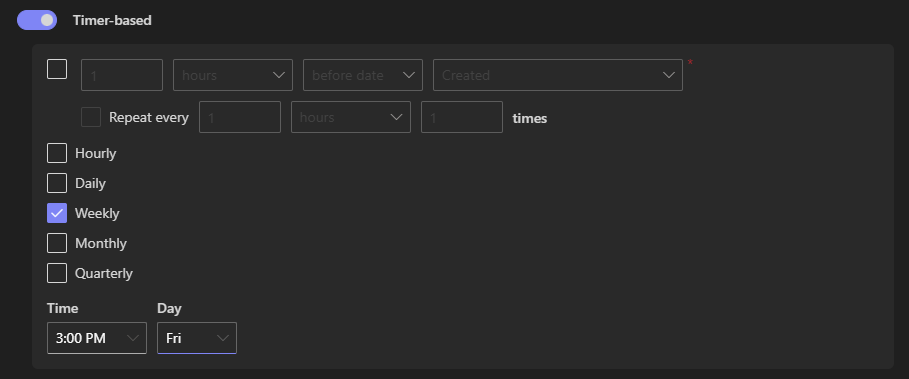
Step 3: the schedule. On the action's trigger settings, choose Timer with weekly recurrence, Monday, 8:00. Leave the conditions empty, this is a one-run report, not a per-item sweep.
Step 4: the proof. Save, let it fire once (or trigger it manually for the first test), and check two places: the inbox, for the document's formatting and delivery, and Action History, where every execution is logged with its outcome. From then on, the report arrives because the clock says so, and "who sends the Monday report?" has the best possible answer: nobody.
Total build time is well under an hour, most of it in the template design, and the template is the part worth the time: it is what every future report inherits, scheduled or on demand.
The scenarios this pattern covers
The recurring management report. Weekly dashboards, daily intake summaries, monthly registers: the build above with different templates and cadences. The project reporting variant pairs naturally with generated task structures.
The event-driven document. The same Print action rides item events instead of timers: an invoice marked ready generates its PDF and emails the client; a completed inspection produces the signed work order as both PDF and attachment. One action type, two trigger families, and the invoice example is the automation that most visibly pays for itself.
The compliance snapshot. Audit documentation generated on schedule, the same view, the same branded layout, filed every month, builds the evidence trail without anyone curating it. Consistency is the compliance virtue, and generated documents are consistent by construction.
The date-keyed packet. Timer triggers on date columns produce per-item documents at the right moment: the renewal letter 30 days before expiry, the certificate on completion date. This is the per-item sweep shape, with narrow conditions, and each matching item gets its own document and its own history entry.
Habits that keep scheduled output trustworthy
Four practices cover the operational side. Schedule for quiet hours and stagger the heavy jobs, the 6:00 report and the 6:00 invoicing sweep should not share a minute, and nothing about a Monday 8:00 report requires generating it at 8:00 rather than 7:40. Keep conditions narrow and condition columns indexed on large lists, so the sweeps stay cheap, the same economy the scheduling guide insists on. Review Action History periodically, a scheduled job that fails silently is the automation equivalent of a smoke detector with a dead battery, and the history is where failures announce themselves. And keep a manual override: the same template behind a Print button on the form covers the "I need it now" case without touching the schedule, and the ad hoc copy matches the scheduled one because both come from one template.
The deeper payoff of the pattern is organizational. Documents that generate themselves are documents that are never late, never off-template, and never hostage to one person's calendar or departure, and the fifteen-minute ritual, multiplied across every recurring report in the company, quietly returns as actual work.
Frequently asked questions
Add your comment