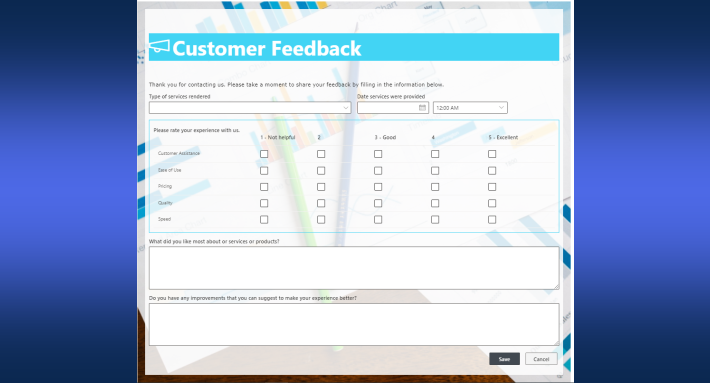
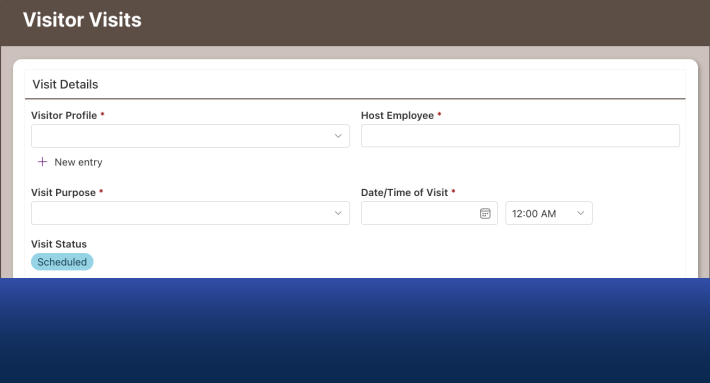
You can place column labels beside their fields in modern SharePoint forms, not just above them. In Ultimate Forms, it is a single toggle in Form Designer, under Styles, on the Style tab, with an adjustable label width to match your longest label. The setting applies to the whole form at once, needs no containers or workarounds, and stays fully responsive: on screens narrower than 480px, labels automatically move back above the fields so the form remains comfortable on a phone.
It sounds like a small choice. Anyone who has migrated a form-heavy solution from classic SharePoint knows it isn't.
Above or beside: what label placement actually changes
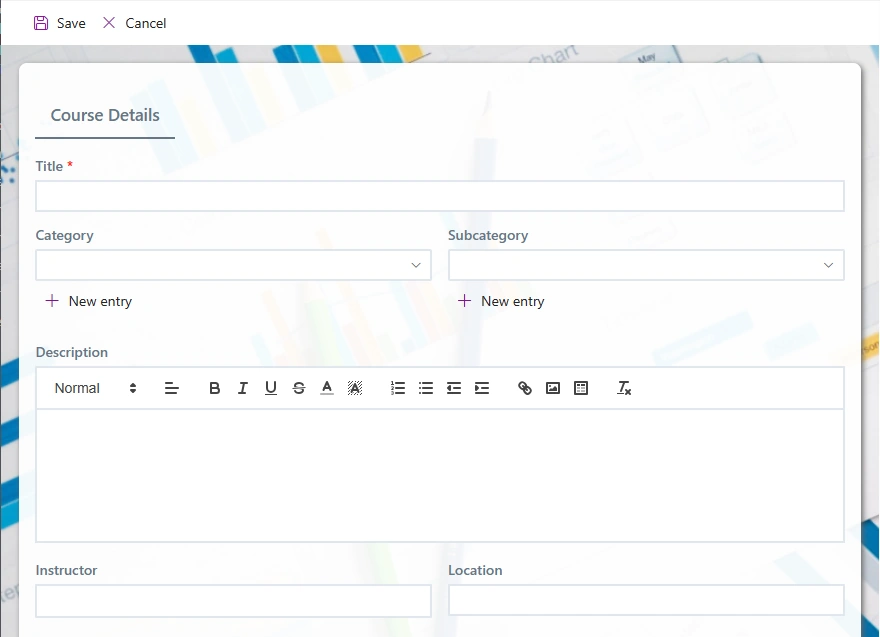
Modern forms everywhere, ours included, default to labels above fields, and for good reason. Top labels work at any width, never truncate, and stack naturally on small screens, which is why responsive design gravitated to them. Ultimate Forms modern forms have been responsive by design from their first release, adjusting size and layout to the available screen so the same form serves a giant desktop monitor and the smallest phone without any adjustment.
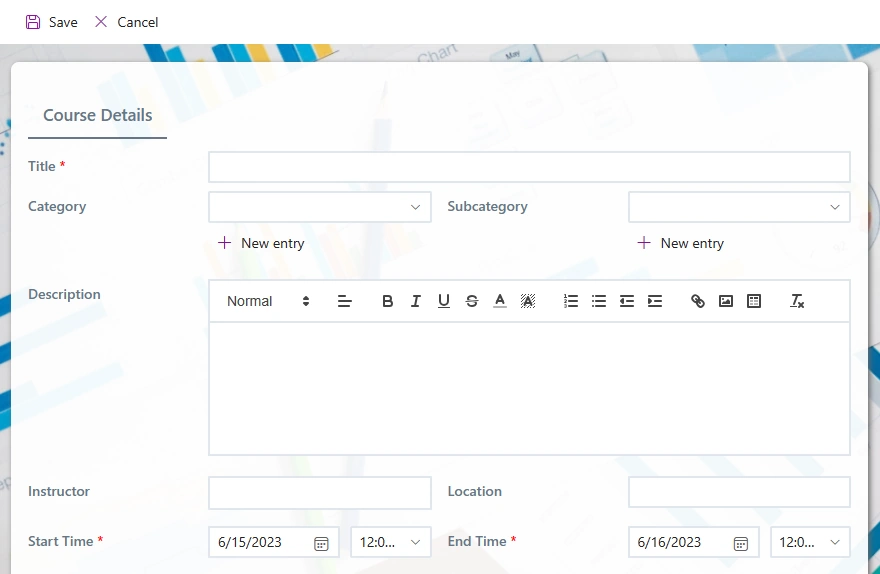
But side-by-side labels have real strengths of their own. A label on the left with its value on the right reads like a record, which is exactly what review-heavy forms are: an approver scanning a purchase request, a clerk verifying an application, a manager checking a timesheet. The eye runs down a single left-hand column of labels and finds any field instantly. Vertical space is a second advantage: a form with forty fields is nearly twice as tall with top labels, and on a large monitor that means scrolling past information that could have fit on one screen.
There is also the matter of habit, and habits deserve more respect than they get. Classic SharePoint forms, InfoPath forms, and most line-of-business systems put labels on the left for decades. When users who lived in those systems meet a modern form, side-by-side labels make it feel familiar on day one, and familiarity is adoption. This was one of our most requested capabilities for precisely that reason.
Here is the standard top-label layout for comparison:
One toggle, not a workaround
Before this option existed, builders imitated left-hand labels using Containers and Fragments, placing label text in one cell and the column in another. It worked, visually, but it split every field in two: rules and permissions had to be applied separately to the label and the column, doubling the configuration and creating a maintenance trap whenever a form changed. If you inherited a form built that way, replacing the construction with the native setting is worth the ten minutes, and the Fragments feature can go back to what it is genuinely for: reusable instructions, graphics, and formatted content.
The native setting lives in Form Designer. Click Styles in the toolbar, switch to the Style tab, and the option sits at the top:
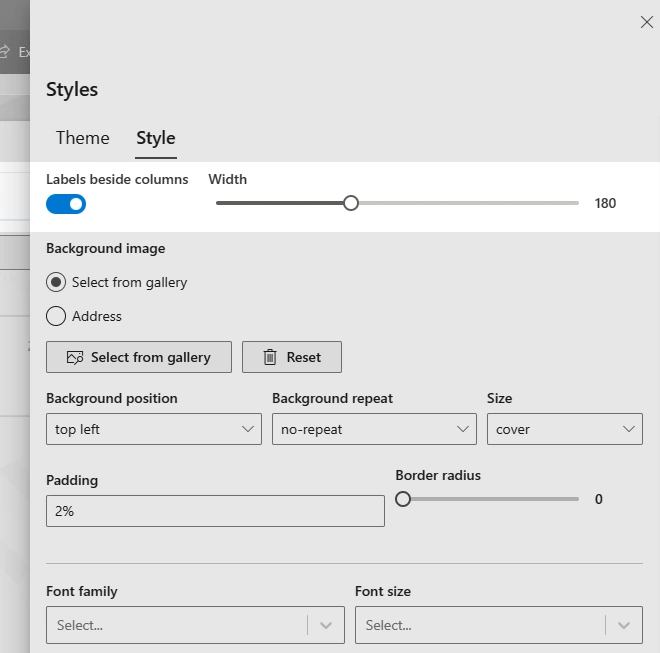
Activating the mode reveals a label width setting. Set it to fit your actual labels: wide enough that the longest one doesn't wrap, no wider, so the fields keep the room. While you are on this tab, the surrounding styling and theming options, colors, fonts, and more, are covered in How to Style SharePoint Forms and Customize Modern SharePoint Forms with Advanced Styling.
Publish the form and the result is immediate:
What happens on a phone
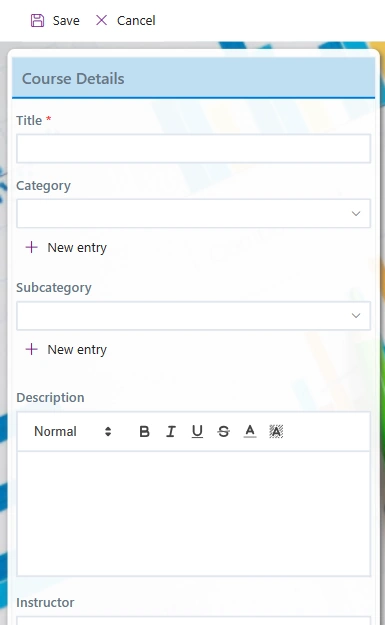
Nothing you need to think about, which is the point. On very small screens, below 480px width, the form automatically returns labels to their position above the fields, and tabs are replaced with expanding accordion sections, keeping the form simple to use with a thumb. One form, one configuration, correct on every device. The same responsive thinking runs through the platform, from the form width slider to the patterns in Mobile SharePoint Forms Made Easy.
Choosing for your form
A practical rule of thumb. Choose side-by-side labels for dense, record-like forms viewed mostly on desktops: approvals, registrations, administrative data entry, and anything migrated from classic SharePoint or InfoPath where users expect the old geometry. Keep labels above for forms that are mostly filled on phones, forms with long or translated labels that would force a wide label column, and public-facing forms where the modern convention reads as more current.
Label placement is one decision among the ten that make or break a form; the full set, grouping, steps, validation, and the rest, is in Ten Key SharePoint Form UX Principles, and the closely related question of arranging fields themselves into columns is covered in Mastering Multi-Column Form Layouts. Whichever you choose, it is one toggle, and switching back is the same toggle. Decisions this cheap to reverse are decisions you can afford to test on real users.
Frequently asked questions
Can labels be placed beside fields in modern SharePoint forms? Not with native modern forms. In Ultimate Forms it is a built-in option: one toggle in Form Designer, under Styles on the Style tab, applies side-by-side labels to the whole form.
Can I control how wide the labels are? Yes. Activating side-by-side mode reveals a label width setting; size it to your longest label so nothing wraps and fields keep maximum room.
What happens to side-by-side labels on mobile? On screens below 480px wide, the form automatically moves labels back above the fields and replaces tabs with accordion sections. No separate mobile configuration is needed.
Do I need Containers or Fragments to build this layout? Not anymore. That workaround split each field's rules and permissions between a label and a column; the native toggle avoids all of it and is the recommended approach.
Do rules and permissions work normally in side-by-side mode? Yes. Labels and columns stay a single unit, so column rules, permissions, and validation apply exactly as in the standard layout.
When are side-by-side labels the better choice? For dense, desktop-first, record-like forms, approvals, registrations, admin data entry, and for users accustomed to classic SharePoint or InfoPath layouts. Keep labels above for phone-first and public-facing forms.
Add your comment